Getting Started
A quick tour
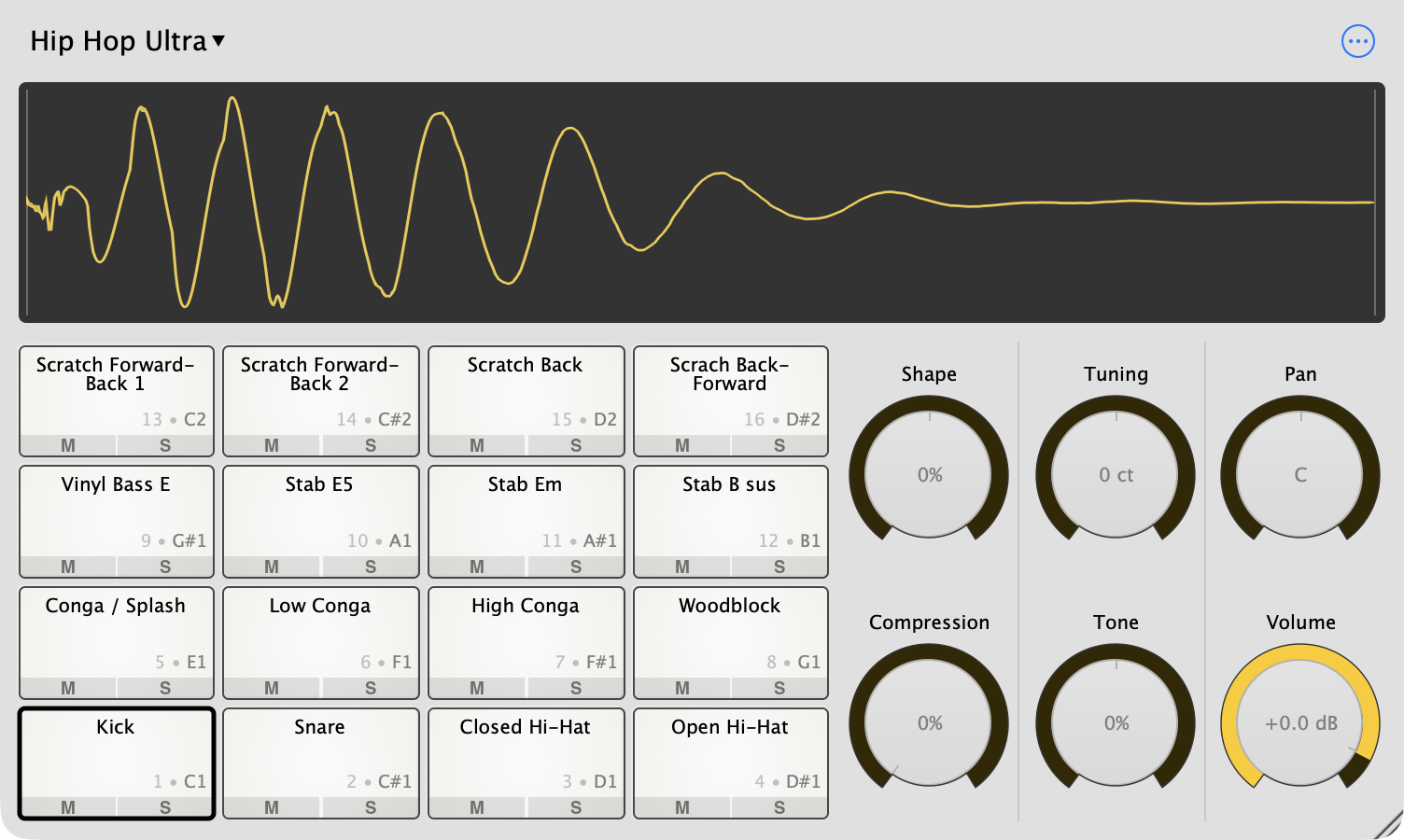
From top to bottom:
- The kit name (top left). Click it to switch kits. When you’ve changed something since the kit was last saved, you’ll see – Edited after the name.
- The options menu (the ⋯ button, top right). Saving kits, MIDI settings, the pad layout and more live here.
- The sample display shows the sample on the selected pad. This is where you trim, slice and preview samples. When you touch a knob, it shows what that knob is doing to the sound.
- The pads. Each pad holds one sample. The pad with the dark outline is the selected pad; the display and the knobs belong to it. The small numbers show the pad number and the MIDI note that plays it.
- The knobs — Shape, Tuning, Pan, Compression, Tone and Volume — change the sound of the selected pad. See Editing Samples.
A new Sitala instance starts with the Clean 808 kit, so there’s something to play right away.
Playing pads
- Click a pad to play it and select it.
- ⌘-click (Mac) or Ctrl-click (Windows) to select a pad without playing it.
- Play it from MIDI. By default, pad 1 is MIDI note 36 and the other pads follow chromatically. See MIDI for how that works with your DAW and controller.
-
Play it from your computer keyboard in the standalone app (this doesn’t work in the plugin):
1 pad 13 2 pad 14 3 pad 15 4 pad 16 Q pad 9 W pad 10 E pad 11 R pad 12 A pad 5 S pad 6 D pad 7 F pad 8 Z pad 1 X pad 2 C pad 3 V pad 4 Space plays the selected pad, and the arrow keys change the selection.
Loading your first sounds
Start with an empty kit: choose New Kit from the kit menu (click the kit name) or the options menu.
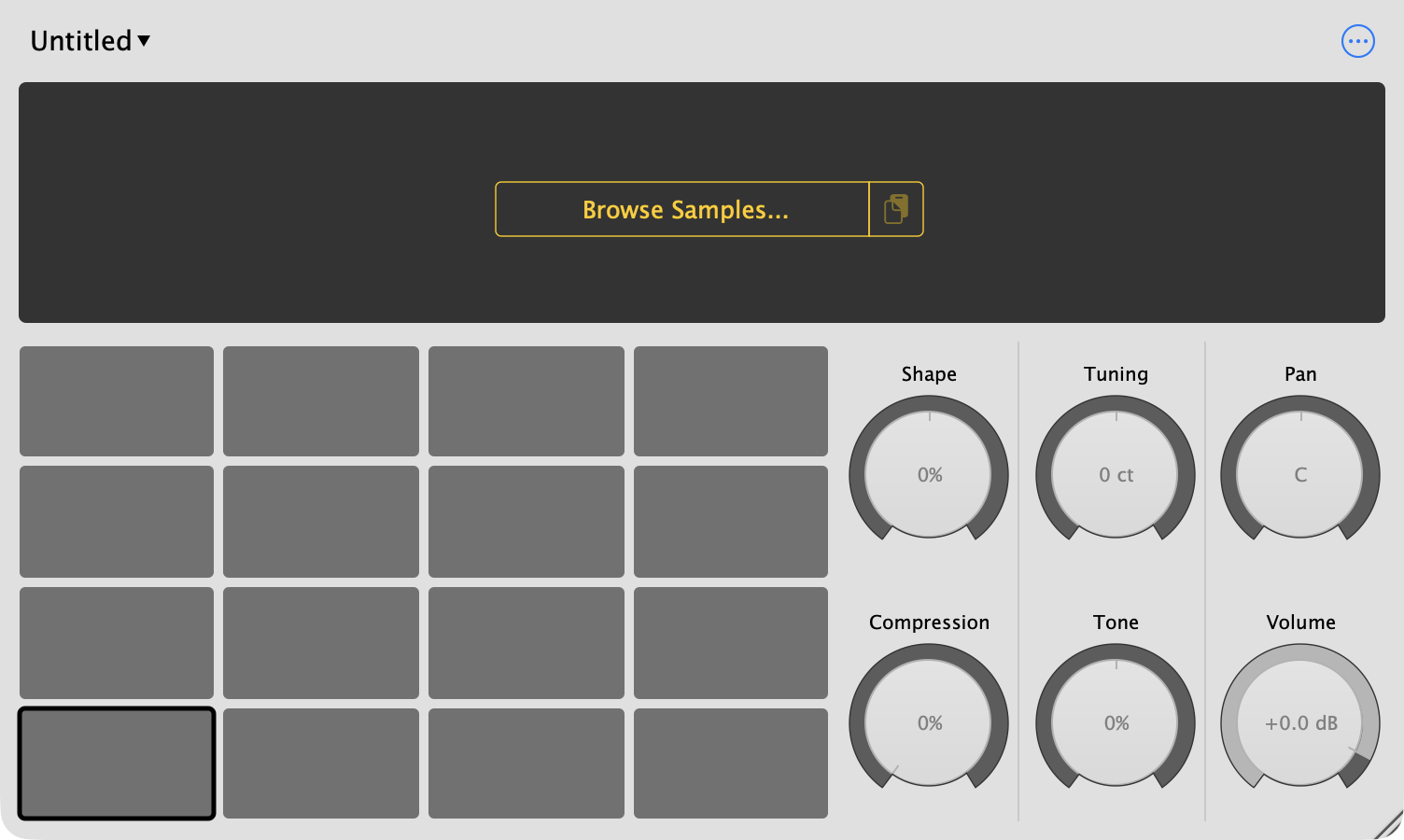
There are several ways to get sounds onto pads:
- Drag audio files from Finder or Explorer onto a pad. Drop several files (or a whole folder) and Sitala fills consecutive pads, starting with the one you dropped on.
- Click Browse Samples… in the sample display to use Sitala’s built-in sample browser. Click a file’s name to load it onto the selected pad.
- Right-click a pad and choose Load Sample… to use the normal file dialog.
- Paste: copy audio files in Finder or Explorer, select a pad in Sitala and press ⌘V / Ctrl+V.
Sitala reads WAV, AIFF, FLAC, Ogg and MP3 files on every platform, and M4A and CAF on macOS.
When you load a sample, Sitala:
- names the pad after the file (you can turn that off in the options menu with Automatically Set Pad Name to Sample Name),
- trims silence from the start of the sample, and
- if the file looks like a loop with several separate hits, offers to slice it to separate pads.
Once your pads are filled, save your kit.
← Contents · Next: Pads →
Contact