Browsing Samples
The sample browser
Select an empty pad and click Browse Samples… in the sample display, or choose Browse Samples… from the pad or sample menu. The browser opens in place of the pads and loads samples onto the selected pad.
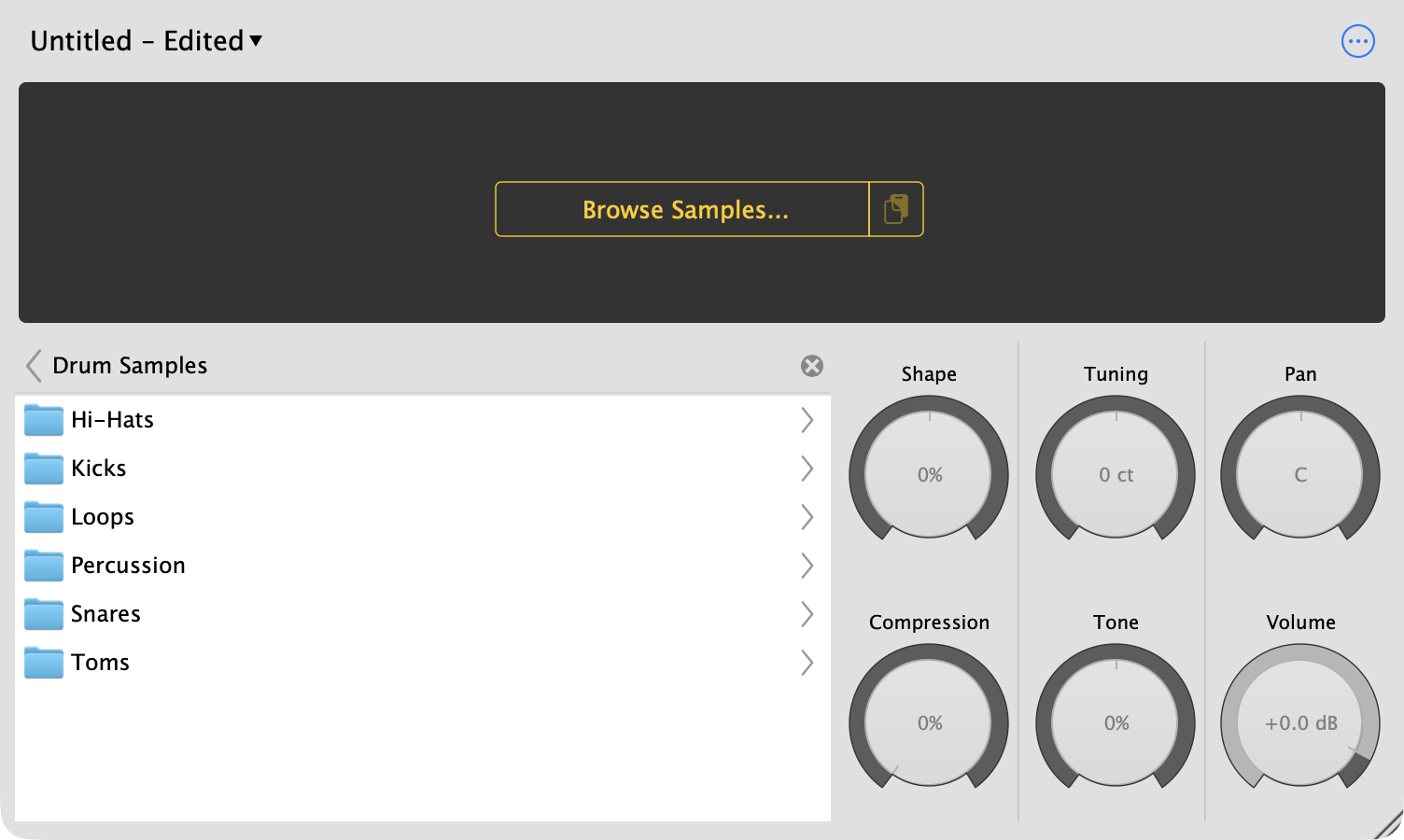
Opening a folder (here, a folder of drum samples) lists its subfolders. On an empty pad, the top level of the browser has:
- Your home folder.
- Favorites — folders you use a lot. Click Add Location… to add one, and the ⊖ button to remove it.
- Volumes — your drives.
- Recently Used — folders you’ve loaded samples from recently.
Click a folder to open it, and the arrow at the top left to go back up.
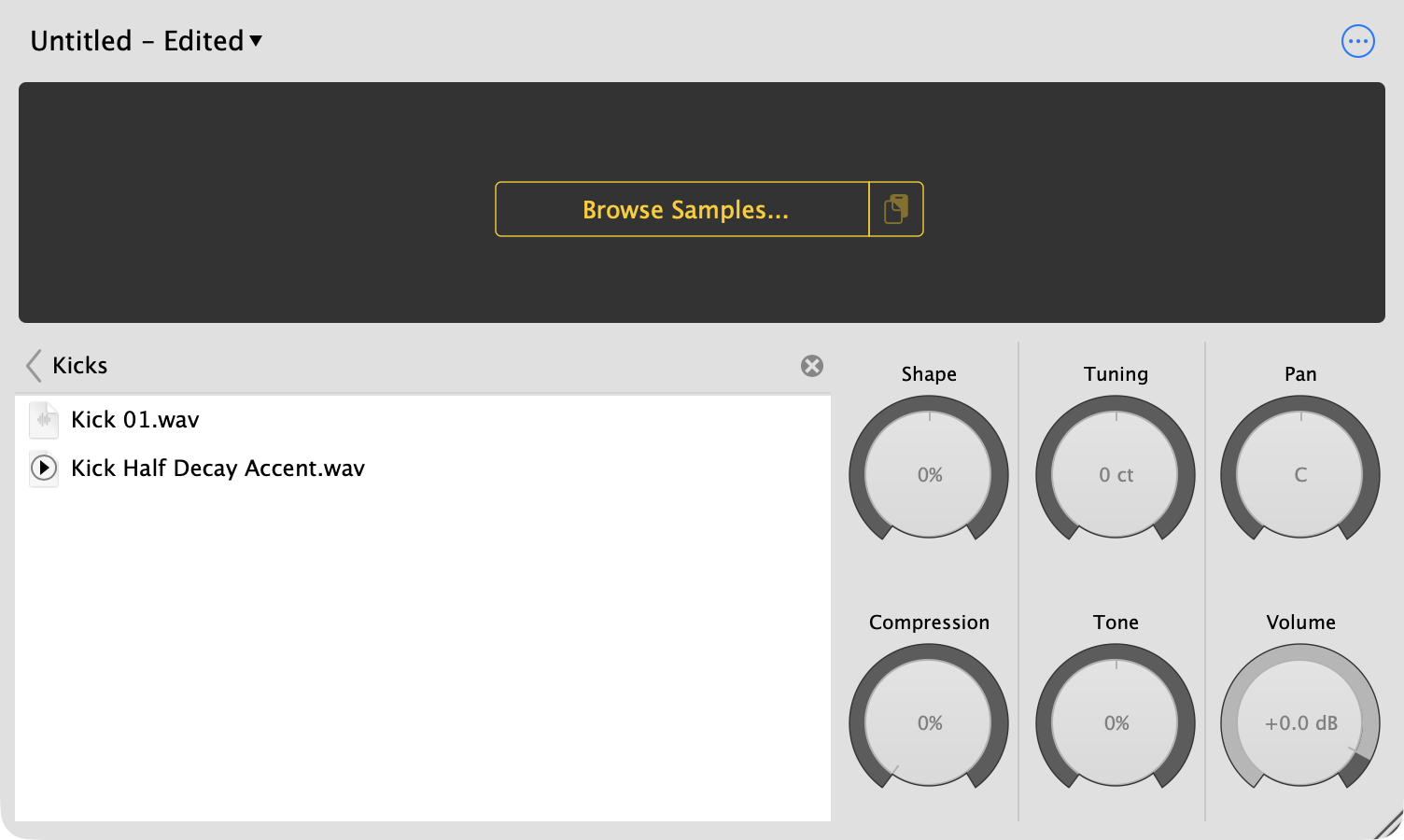
- Click the play button next to a file to preview it without loading it.
- Click the file name to load it onto the selected pad. The browser closes.
- You can browse into
.sitalakit files like folders, and load individual samples out of them.
Close the browser with the ⊗ button at the top right.
Once a pad has a sample from a folder, the previous / next buttons on the display are often the fastest way to try out other sounds from the same folder.
Drag and drop
You can drag samples in from Finder, Explorer or most DAWs’ file browsers:
- Onto a pad — loads the sample onto that pad. Drop several files, or a folder (including subfolders), to fill consecutive pads starting from that one. Files that aren’t audio are skipped.
- Onto the display — replaces the selected pad’s sample.
- A
.sitalakit onto the window — opens the kit.
Pad names
By default, loading a sample renames the pad after the file. If you’ve named your pads and want to keep those names when changing samples, turn off Automatically Set Pad Name to Sample Name in the options menu.
Missing samples
Kits you save include their samples, but DAW projects and the standalone app point to sample files on your disk. If those files are moved, renamed or deleted — or you open a project on another computer — Sitala has to find them again.
Sitala handles this in steps, in a dialog titled Samples Missing, followed by the name of the track Sitala is on.
1. Sitala finds them automatically. When a sample isn’t where it used to be, Sitala searches your computer for it — by name, and by file size in case it was renamed — and checks that the file’s contents are identical. If it finds one, it asks:
The sample … could not be found at its previous location. We’ve located it at …. Should we update its location?
Choose Update. Check Apply for all samples to accept all of them at once.
Choose Later to leave the pad empty for now; it’s still in your project and you
can relink it the next time you open it. Because Sitala checks the file’s
contents, not just its name, it won’t pick the wrong one of a dozen files called
Kick 01.wav, and the pad keeps all of its settings.
2. The drive isn’t connected. If the samples were on an external drive that isn’t plugged in, Sitala tells you which drive it’s looking for. Connect it and choose Retry, or choose Search Instead….
3. You point Sitala at a folder. If some samples still can’t be found:
12 samples couldn’t be located automatically. Choose a folder or drive to search for them.
Choose Choose Folder… and pick the folder (or drive) where your samples are
now — for example, your reorganized sample library. Sitala searches everything
inside it, including inside .sitala kit files, and relinks every sample it
finds.
Tips
- Automatic searching relies on your computer’s search index (Spotlight on macOS, Windows Search on Windows). If your samples are in a folder that isn’t indexed, use Choose Folder….
- If you move projects between computers often, keep samples with the project. In REAPER, Collect Samples in Project does this for you; elsewhere, save a kit.
Contact