MIDI
Which note plays which pad?
Out of the box, Sitala uses the Chromatic Keys map: pad 1 is MIDI note 36, pad 2 is note 37, and so on up to pad 16 on note 51. Most drum pad controllers send notes starting at 36, so they usually work without any setup.
Each pad shows its note, and in the 16 x 1 layout the note is shown under each pad.
Why is note 36 called C1 in one place and C2 in another?
There’s no single standard for naming octaves. Note 36 is the same note everywhere, but different programs call it different things:
| Note 36 is called | In |
|---|---|
| C1 | Sitala standalone, Ableton Live, Logic, Cubase, Pro Tools, Bitwig, Studio One |
| C2 | REAPER, Waveform |
| C3 | FL Studio, Cakewalk |
As a plugin, Sitala uses the same names as your DAW, so the note on the pad matches the note in your piano roll. If you’re following a tutorial, go by the note number, or by what the pad shows.
If pads don’t play from MIDI
If clicking pads makes sound but your keyboard or controller doesn’t, it’s almost always a setting in your DAW rather than in Sitala. Check these in order:
- The track is armed or monitoring input. Most DAWs only send live MIDI to an instrument on a record-armed track, or with input monitoring turned on. In REAPER, turn on the record arm and record monitoring (the speaker icon).
- The track’s MIDI input is set to your controller (or All MIDI inputs), on all channels.
- Your controller is sending notes Sitala is listening for. The pad lights up when it receives a matching note. If nothing lights up but your DAW’s MIDI meter moves, the controller is sending notes outside of 36–51 — change the controller’s octave or pad bank, or teach Sitala the notes with MIDI Learn.
- In the standalone app, enable your controller under Active MIDI inputs in Show Audio/MIDI Settings…, and check MIDI Channel in the options menu.
No keyboard handy? REAPER has a virtual MIDI keyboard (View → Virtual MIDI Keyboard); select it as the track’s input. In the standalone app, you can also play pads from your computer keyboard.
MIDI map presets
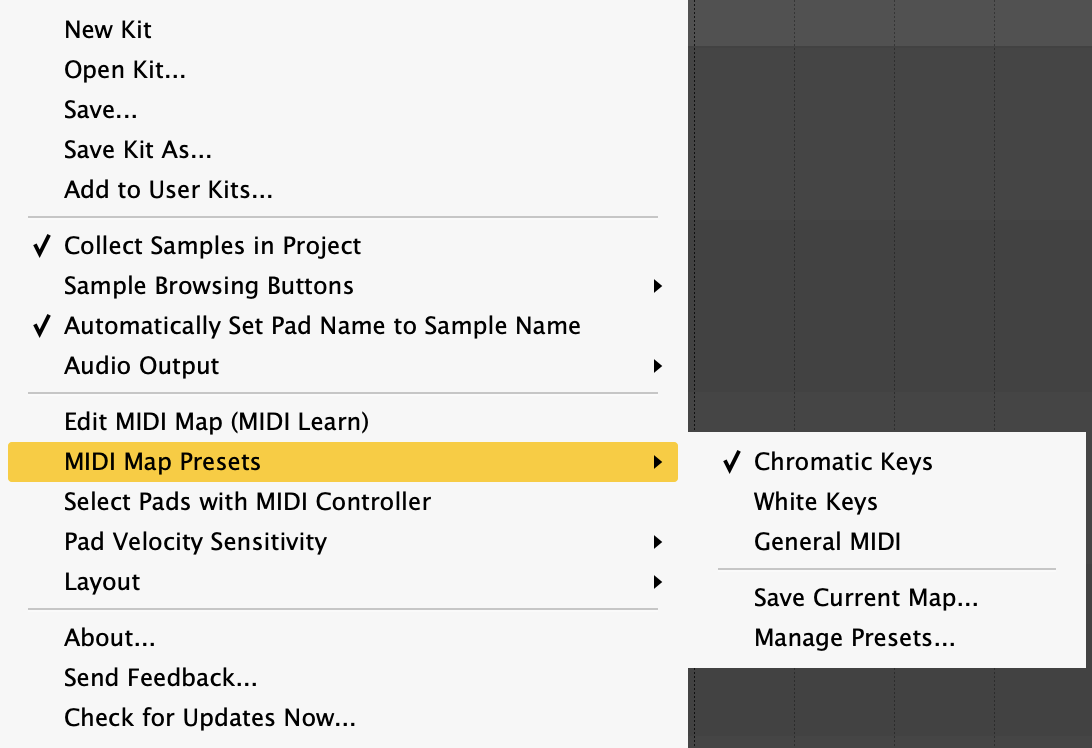
MIDI Map Presets in the options menu switches how notes map to pads:
- Chromatic Keys — pads on notes 36–51 (the default).
- White Keys — pads on the white keys only, starting at note 36, so a small keyboard can reach all 16 pads without black keys.
- General MIDI — each pad plays on its General MIDI note.
- Your own presets — once you’ve set up a map with MIDI Learn, choose Save Current Map… to keep it. Manage Presets… lets you delete them.
The MIDI map belongs to the Sitala instance (and your DAW project), not to the kit, so opening another kit keeps your mapping. New Kit resets it to Chromatic Keys.
General MIDI
General MIDI (GM) is a standard that assigns drum sounds to notes: 36 is a bass drum, 38 a snare, 42 a closed hi-hat, and so on. Electronic drum kits and MIDI files exported from notation programs (like Guitar Pro, MuseScore or Sibelius) usually follow it. If a drum MIDI file plays the “wrong” pads, this is why.
To make Sitala follow GM:
- For each pad, right-click it and choose the matching sound from Map General MIDI — for example, 38: Acoustic Snare.
- Choose General MIDI from MIDI Map Presets.
If the kit doesn’t have any GM assignments yet, Sitala shows the preset as General MIDI (unmapped) and reminds you to add them. GM assignments are saved with the kit.
MIDI Learn
MIDI Learn lets you teach Sitala which notes and controls on your controller should do what. Choose Edit MIDI Map (MIDI Learn) from the options menu (⌘M / Ctrl+M in the standalone app).
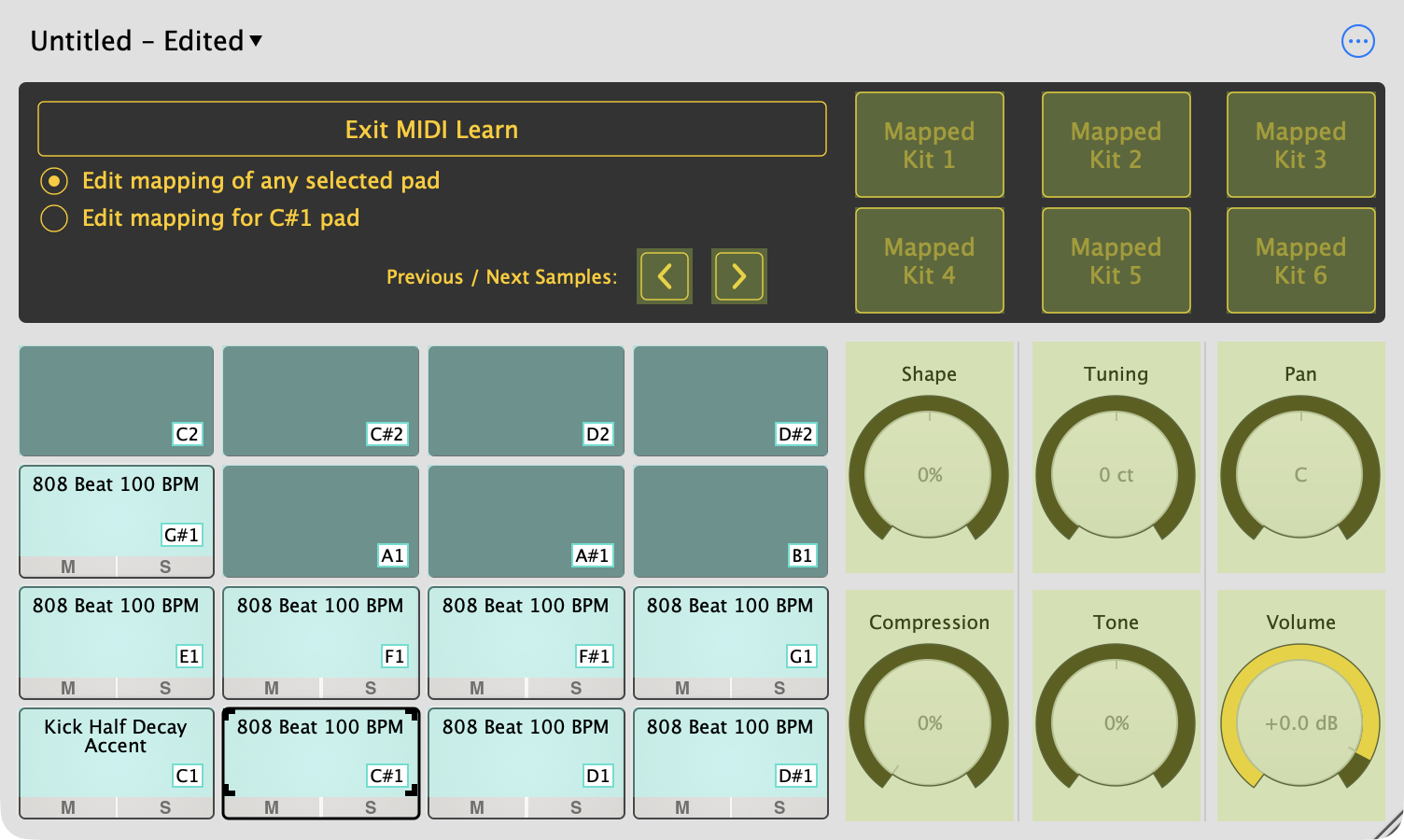
Sitala shows what can be mapped, with the current assignment on each item. Click the thing you want to map, then play the note or move the control on your controller.
- Pads learn notes. Click a pad and hit the pad or key you want to play it.
- Knobs learn continuous controllers (CC). Click a knob and turn a knob or
slider on your controller.
- With Edit mapping of any selected pad, that controller turns the knob of whichever pad is selected, so one row of six controller knobs can edit every pad.
- With Edit mapping for … pad, the controller is tied to that one pad’s knob.
- Previous / Next Samples buttons can be mapped too, so you can flip through samples from your controller.
- Kit buttons (Mapped Kit 1–6) switch kits with a Program Change or CC. Click one to choose the kit it loads — any factory, user or recent kit, or a kit file — then send the program change or CC. This works even when the Sitala window is closed.
To remove an assignment, right-click the item and choose Delete Mapping. Click Exit MIDI Learn when you’re done.
Sitala sends CC values back to your controller when you change a mapped knob, so controllers with motorized faders or LED rings stay in sync.
Select pads with a controller
With Select Pads with MIDI Controller turned on in the options menu, playing a pad from MIDI also selects it, so you can edit whichever pad you last hit without reaching for the mouse.
Note names in your DAW
As a plugin, Sitala tells your DAW the name of each pad, so the piano roll shows Kick, Snare and so on next to the notes. This works in REAPER, Bitwig, FL Studio, Waveform and other VST3 hosts. In REAPER’s MIDI editor, choose View → Mode: Named notes to see them.
← Browsing Samples · Contents · Next: Multiple Outputs →
Contact