Kits
A kit is a set of 16 pads: their samples, names, knob settings, and choke and
trigger settings. Kits are saved as .sitala files.
Your MIDI Learn mappings aren’t part of the kit — they belong to your setup, not the sounds — so they stay put when you open another kit. (New Kit resets the MIDI map to Chromatic Keys.) To reuse a MIDI map elsewhere, save it as a MIDI map preset.
The kit menu
Click the kit name at the top left to switch kits:
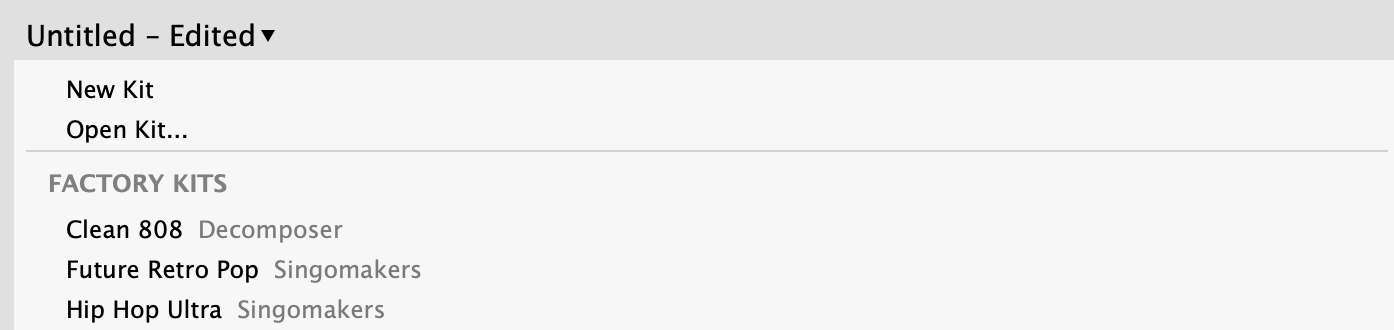
- New Kit starts with 16 empty pads.
- Open Kit… opens a
.sitalafile from anywhere on your disk. - Factory Kits come with Sitala: Clean 808, Future Retro Pop and Hip Hop Ultra. More free kits are on the Extra Kits page.
- User Kits are kits you’ve added with Add to User Kits… (see below). This section appears once you have at least one user kit; the arrow next to its heading opens the User Kits folder.
- Recently Used lists kits you’ve opened recently.
If you’ve changed the current kit and haven’t saved it, Sitala asks before loading another one.
You can also drag a .sitala file onto the Sitala window to open it. Sitala
will offer to copy it into your User Kits.
Do I need to save kits?
Not when you’re using Sitala as a plugin. Your DAW saves everything about each Sitala instance — samples, knobs, names, MIDI map — in its project. Reopen the project and it’s all there, whether or not you’ve saved a kit.
One thing to keep in mind: a DAW project only points to the sample files on your disk. If you open the project on another computer, or move your samples, Sitala has to find them again. In REAPER, Sitala can collect the samples into the project folder so projects are self-contained. In other DAWs, saving a kit alongside your project is a good way to keep a copy of the samples with it.
Save a kit when you want to reuse a set of pads in other projects, share it with someone else, or keep a copy that doesn’t depend on a DAW project. In the standalone app, Sitala reopens with the kit you last had loaded.
Saving kits
The options menu (⋯) has three ways to save:
- Save / Save… writes the kit to the file it was opened from. If the kit hasn’t been saved yet, it asks where to put it.
- Save Kit As… saves a copy under a new name and location.
- Add to User Kits… saves the kit into your User Kits folder, so it shows up in the kit menu under User Kits. This is the easiest way to build up your own library of kits.
Samples are included. A .sitala file is a zip file containing the kit’s
samples along with its settings, so a saved kit keeps working even if you move or
delete the original sample files.
Where are my user kits?
- macOS:
~/Library/Application Support/Sitala/User Kits - Windows:
%APPDATA%\Sitala\User Kits
To back up your kits, copy this folder. To delete a user kit, delete its file from this folder; Sitala picks up changes the next time you open the kit menu. Once you have a user kit, you can open the folder with the arrow next to User Kits in the kit menu.
Sharing kits with other people
Send the .sitala file. Since the samples are inside, the person you send it to
only needs Sitala; they can open it with Open Kit… or by dragging it onto
Sitala.
If you’re sharing a DAW project instead, remember that the project only points to samples on your computer. Send a kit along with it, or in REAPER, turn on Collect Samples in Project so the samples travel with the project folder.
Exporting kits for distribution
If you make kits for others — a sample pack, say — hold Option (Mac) or Alt (Windows) while clicking the options menu and choose Export Kit for Distribution….
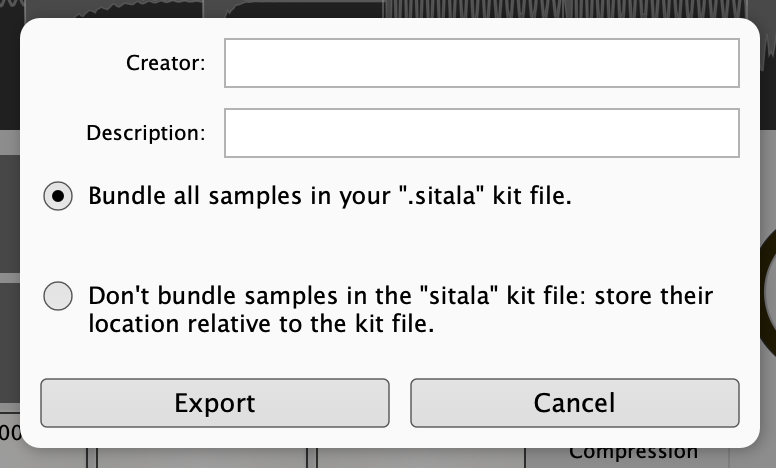
This strips out information that only matters on your computer (like where the samples came from), and lets you add a Creator and Description. You can also choose not to bundle the samples in the kit file and instead store their location relative to the kit, which is useful if your pack also ships the samples as separate files. See Creating Kits for more.
Using the factory sounds
You’re welcome to use the sounds in Sitala’s factory kits in music you make and release, commercially or not. What you can’t do is redistribute the sounds themselves, on their own — for example, in a sample pack or in kits you share or sell.
← Editing Samples · Contents · Next: Browsing Samples →
Contact