Editing Samples
The display above the pads shows the sample on the selected pad. Click it to hear the pad.
Trimming

Move the mouse over the display to see the blue start and end handles. Drag them to set where the sample starts and ends, or drag across the waveform to select a range.
- Handles snap to zero crossings so trimmed samples don’t click. Hold Shift while dragging to turn snapping off.
- When you load a sample, Sitala automatically trims silence from the start.
- To go back to the full sample, right-click the display and choose Select Whole Sample.
Trimming doesn’t change your file on disk.
The sample menu
Right-click the display, or click Sample in its bottom right corner:
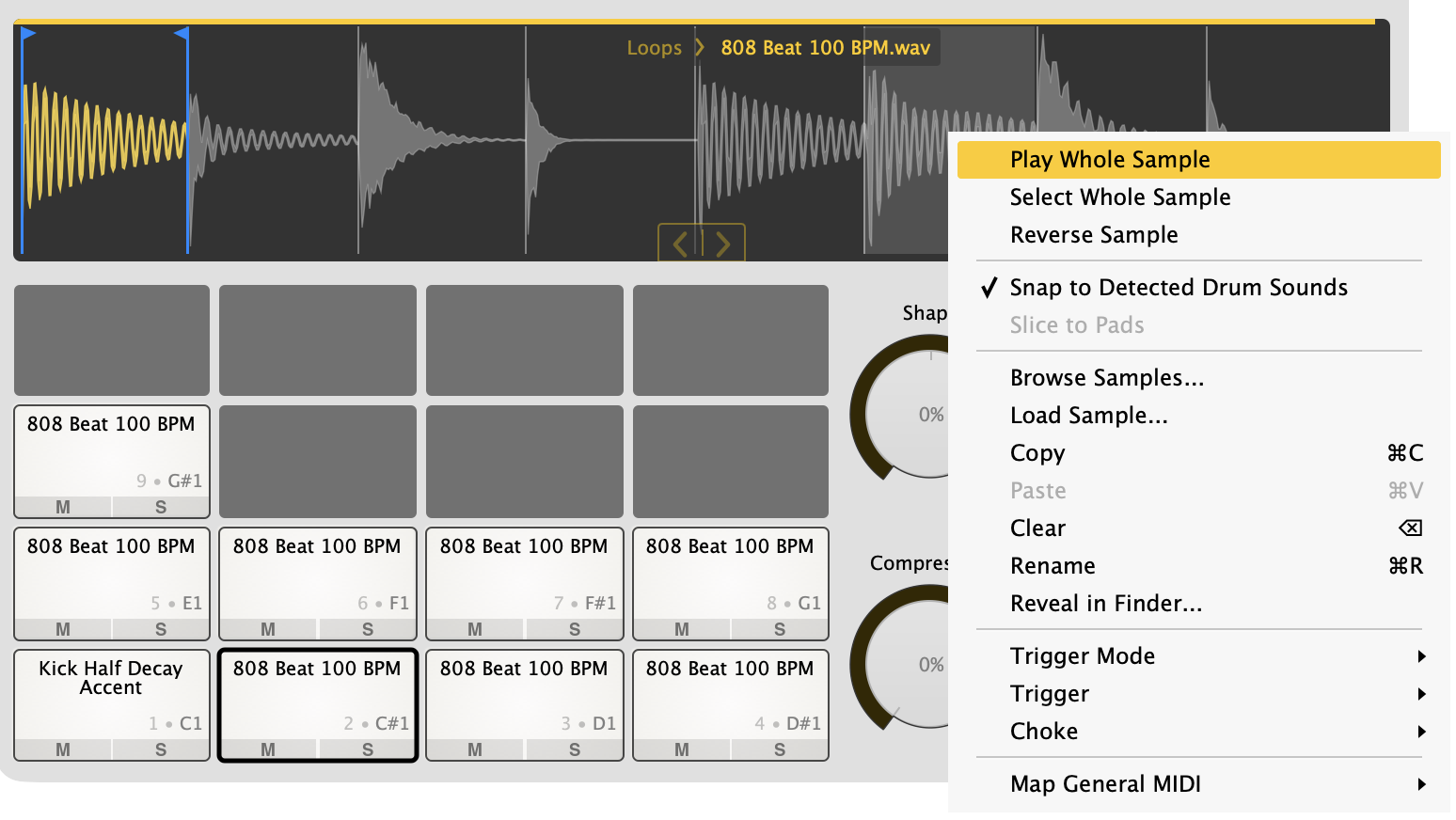
- Play Whole Sample plays the whole file, ignoring the trim. Long samples show a progress bar and a stop button while they play.
- Select Whole Sample removes the trim.
- Reverse Sample plays the sample backwards.
- Snap to Detected Drum Sounds and Slice to Pads — see below.
- The rest of the menu is the same as the pad menu.
Browsing through a folder
When a pad’s sample comes from a folder on your disk, hovering over the display shows the folder and file name at the top, and previous / next buttons at the bottom. They load the previous or next sample in the same folder and play it, so you can audition a folder of kicks right on the pad.
Under Sample Browsing Buttons in the options menu you can choose whether the buttons Stay in the Same Folder (and wrap around), or Continue to Next / Previous Folder when they reach the end.
In the standalone app, , and . do the same thing.
Slicing loops
When a sample has several separate hits in it — a drum loop, a break, a one-bar beat — Sitala detects where each hit starts. Loading one offers to slice it:
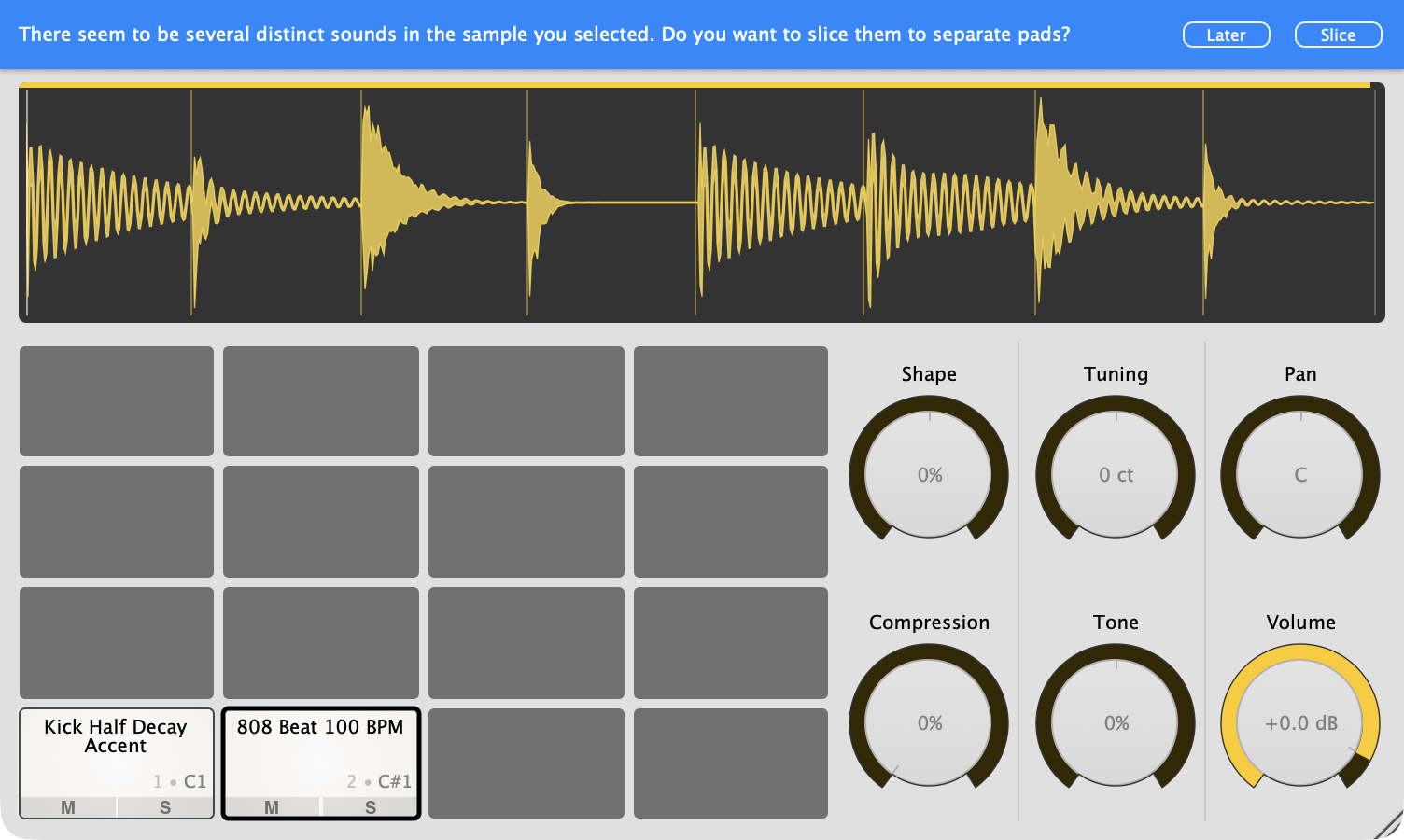
Choose Slice, and each hit goes onto its own pad, starting with the pad you loaded the loop onto. All the slices point at the same file, each with its own start and end.
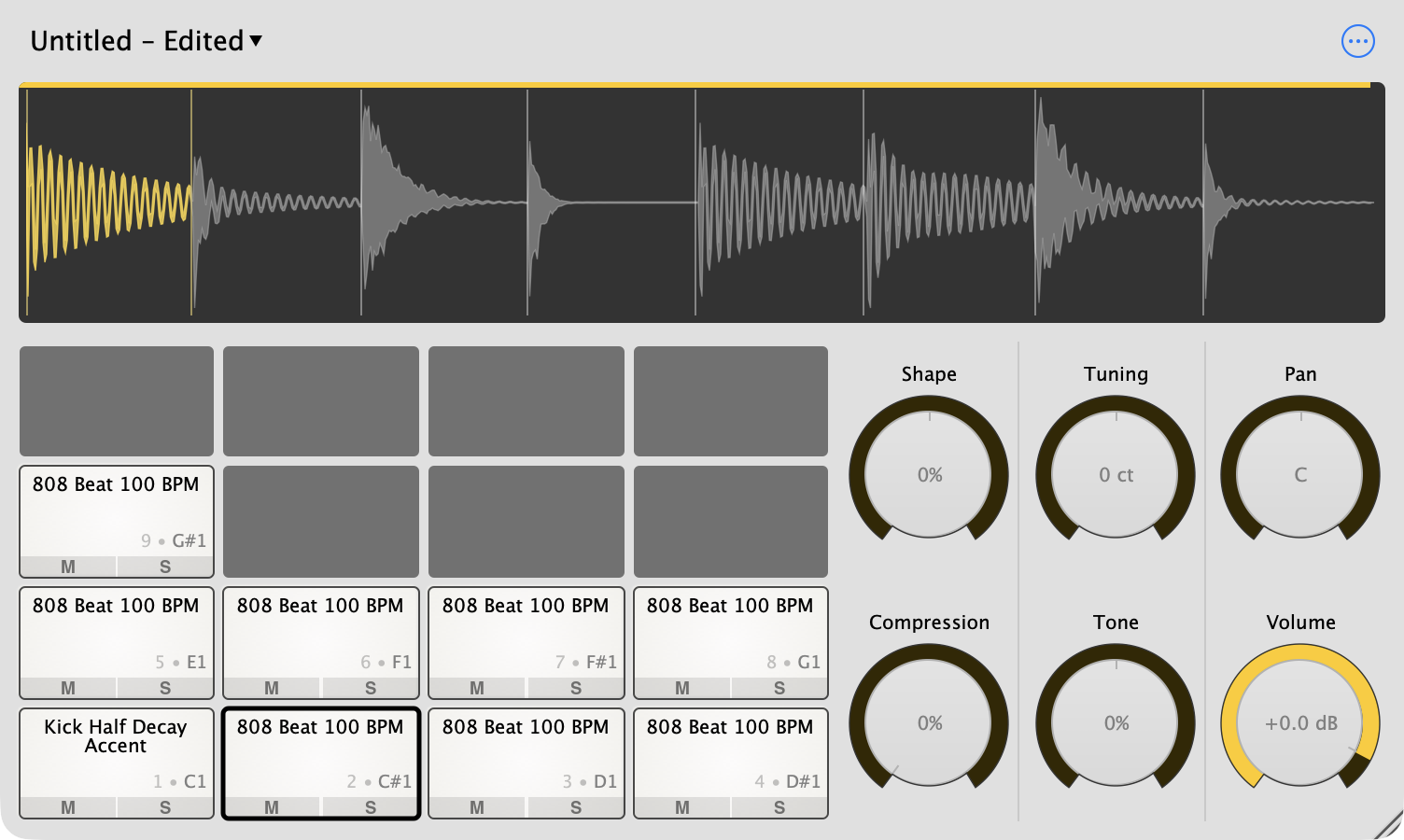
The display shows lines where hits were detected, and the selected pad’s slice is highlighted. Click a slice to select it and hear it; Shift-click to extend the selection over several slices. With Snap to Detected Drum Sounds turned on, the trim handles snap to those lines.
If you chose Later, you can slice any time: right-click the display, make sure the whole sample is selected (Select Whole Sample) and choose Slice to Pads.
Why is Slice to Pads greyed out?
- The sample is a single hit. A kick or snare on its own doesn’t have anything to slice.
- Only one slice is selected. Slice to Pads slices the currently selected range. After slicing, each pad’s range is a single slice, so choose Select Whole Sample first.
- Sitala didn’t find separate hits. Slicing works best on drum loops with clear attacks. Dense, mastered songs or pads and drones won’t have detectable hits. You can still slice these by hand: copy the pad a few times (Option-drag it on a Mac, Ctrl-drag on Windows) and trim each copy.
There’s no zoom in the display, so for very long files slicing by hand is imprecise. It’s easier to trim the file in your DAW or audio editor first.
The knobs
Knobs change the selected pad. While you’re turning a knob, the display shows what it’s doing to the sound.
- Drag up and down to turn a knob.
- Double-click to reset it to its default.
- Option-click (Alt-click on Windows) to type a value, or right-click and choose Edit value. In a plugin, the right-click menu also includes your DAW’s options for that parameter, like automation.
Every knob is available to your DAW for automation, named like 1: Volume, 2: Shape and so on, where the number is the pad.
Shape, Compression and Tone adapt to each sample. When you load or trim a sample, Sitala analyzes the part that plays — its length, level and frequency content — and sets up those knobs to suit that sound. So the whole sweep of a knob is useful whether it’s on a short hi-hat or a long 808, and the same setting does a similar job on different sounds. Tuning also analyzes the sample, to find its pitch.
Shape
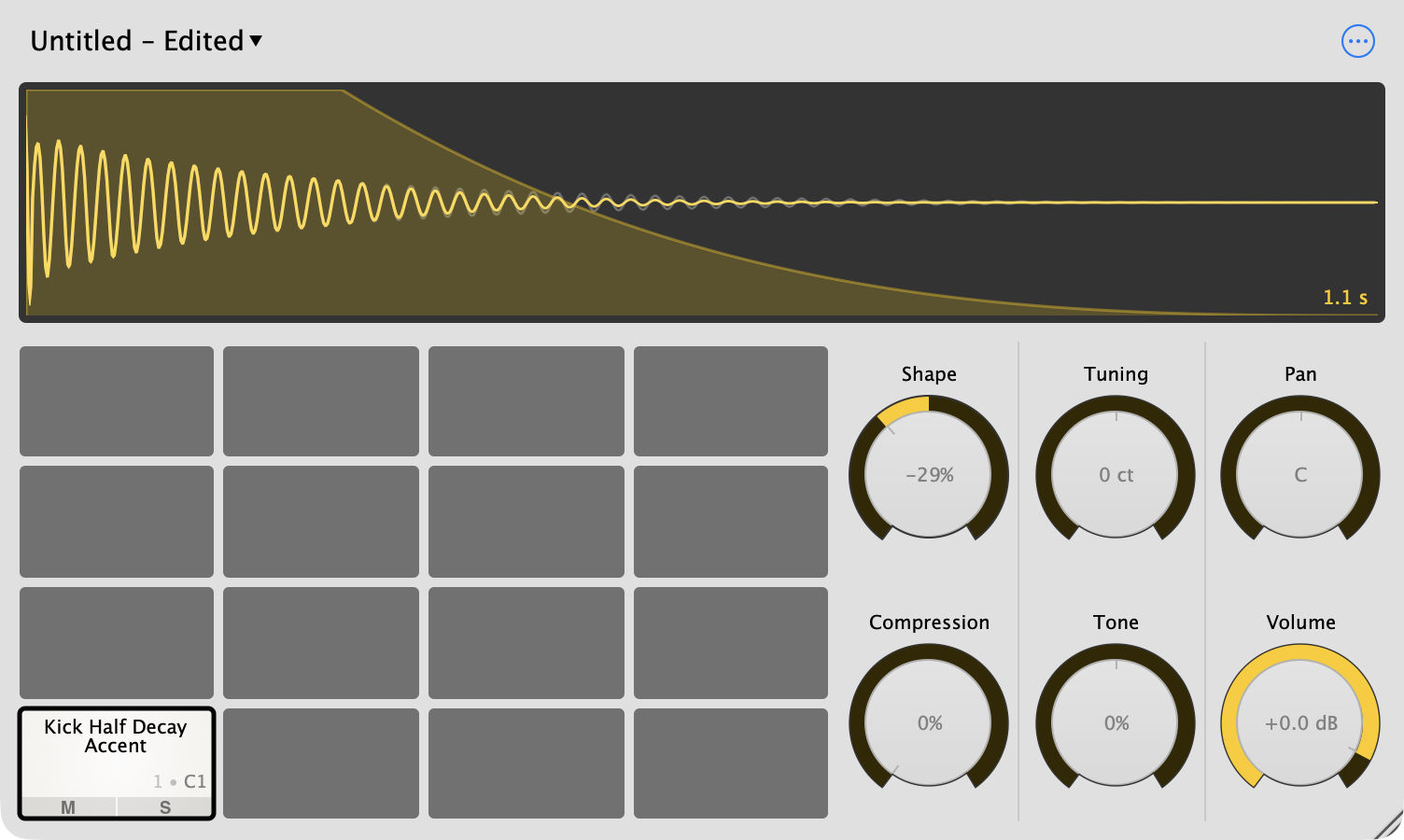
Shape is Sitala’s envelope, from −100% to +100%. It changes the attack and length of the sound, and the display shows the resulting envelope. The envelope’s timing is scaled to the length of the sample, and Sitala adds some gain to make up for what the envelope takes away, so shortening a short sound doesn’t make it much quieter. Long sounds get less makeup gain.
- Turn it down to make a sound shorter and tighter — for cutting off long 808 tails, open hi-hats or room sound.
- Turn it up to soften the attack and bring up the body and sustain.
Since pads are one-shots, Shape is the way to control how long a sound rings. To cut a sound off when the MIDI note ends instead, set the pad to Gated.
Tuning
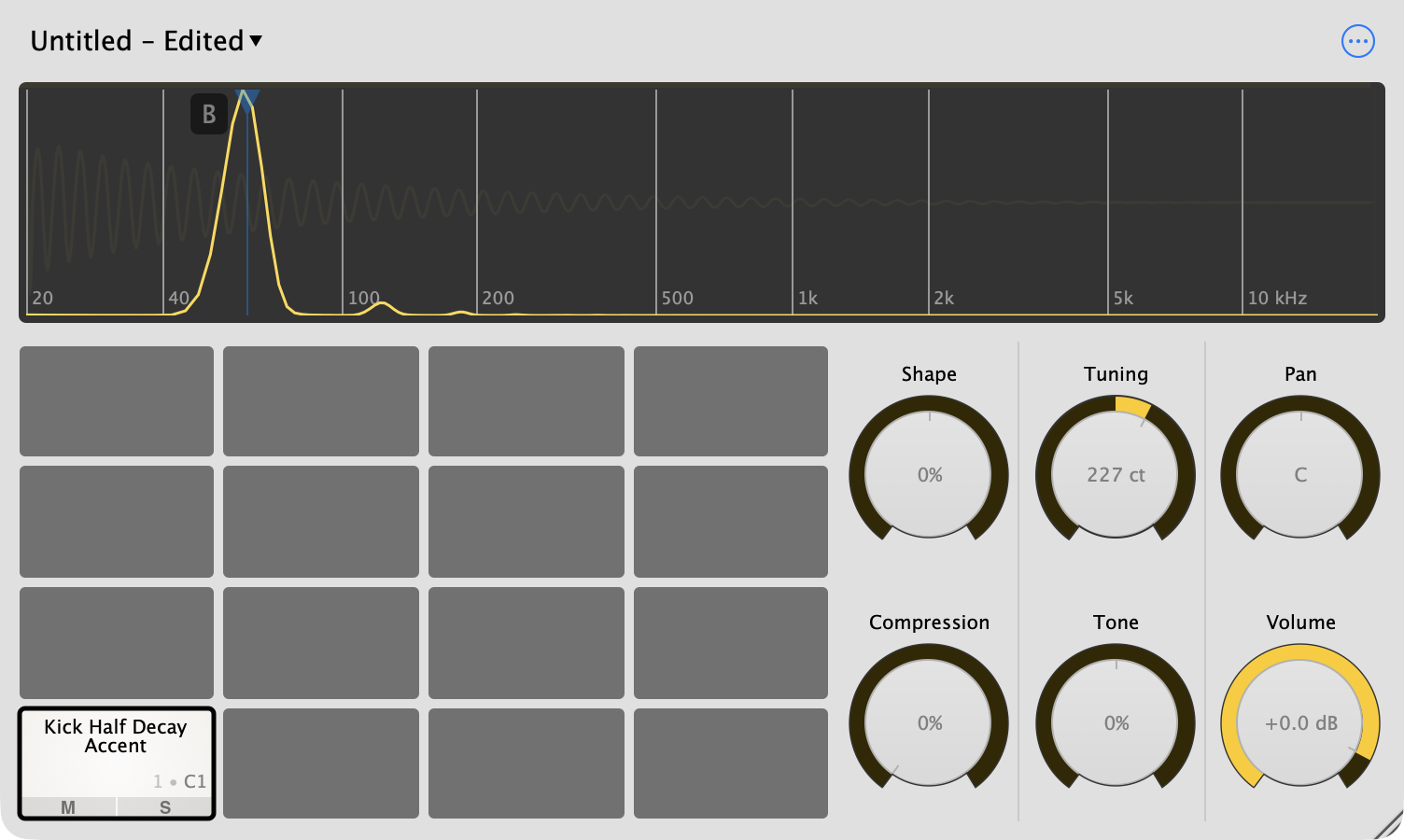
Tuning changes the pitch by up to ±1200 cents — one octave up or down. Like a classic sampler, it changes the playback speed, so tuning down also makes the sound longer.
For pitched sounds, like 808 kicks, toms and bass hits, Sitala detects the note and shows the spectrum, so you can tune a kick to the key of your song. While you turn the knob it snaps to semitones of the detected note; hold Shift to tune freely.
Playing a sample at several pitches: Sitala plays each sample at one pitch per pad. To get, say, a few different 808 notes, copy the pad (Option-drag on a Mac, Ctrl-drag on Windows) onto a few empty pads and tune each one. For playing melodies across a keyboard, use a chromatic sampler instead.
Pan
Moves the pad left or right in the stereo field. The display shows the balance between the left and right channels. Pan is disabled when Sitala is on a mono track.
Compression
A compressor with a single knob, from 0% to 100%. Turn it up to make hits punchier and more even. It doesn’t need any other settings: the threshold is set from the sample’s own peak level, and makeup gain keeps the pad at about the same loudness as the uncompressed sound.
Tone
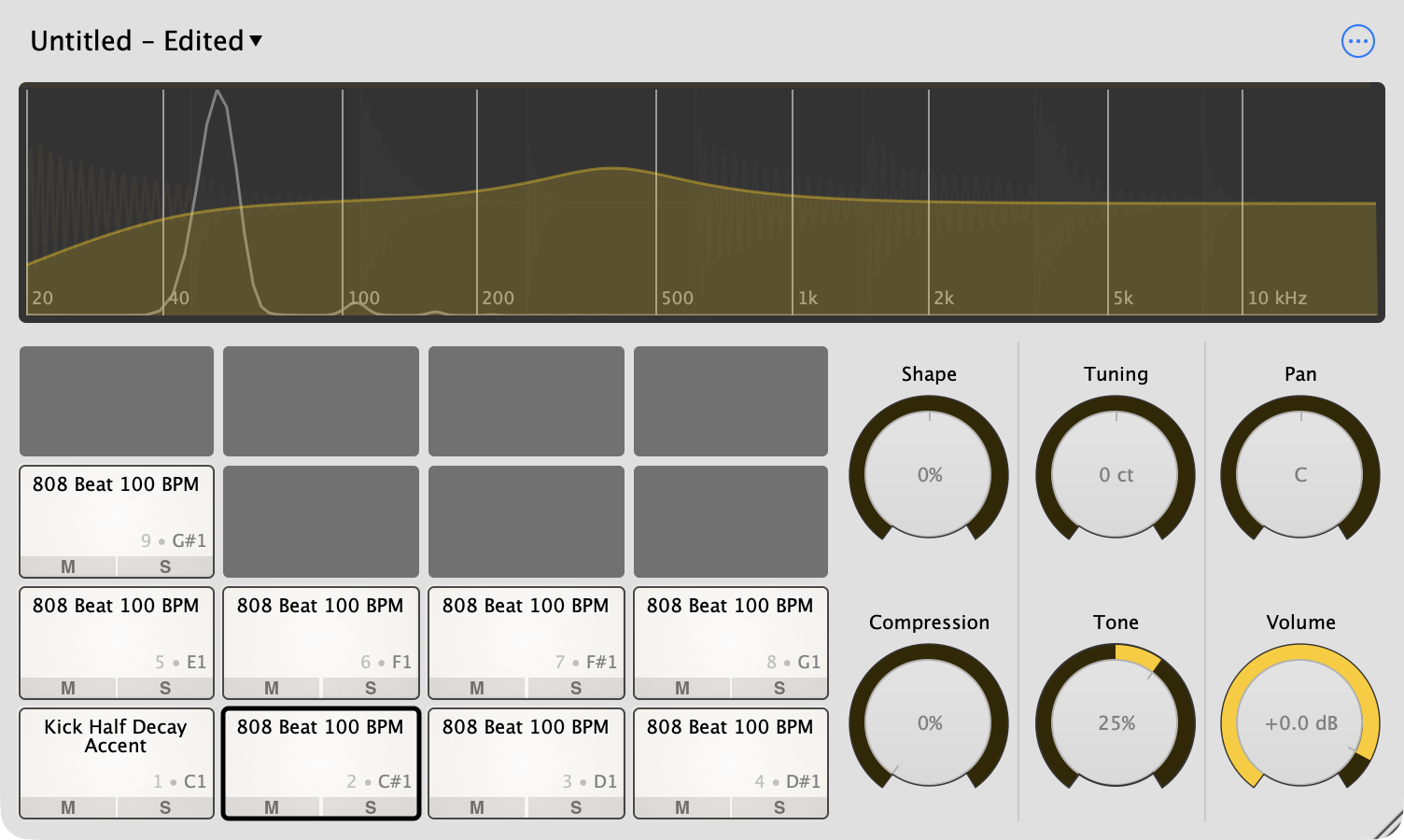
A single tone knob, from −100% to +100%. The display shows the filter curve over the sound’s spectrum. At 0% the filter is bypassed completely.
- Turning it down first scoops out the low mids, then closes a low-pass filter, making the sound darker.
- Turning it up first boosts the upper range, then opens a high-pass filter, making the sound brighter and thinner.
The far ends of the knob are set from the sample. Sitala finds where the sound’s low end starts and where its high end fades out: fully down, the low-pass sits at the sound’s low end; fully up, the high-pass reaches where its high end fades out (at most 10 kHz). So the extremes of the knob are just as useful on a kick as on a hi-hat.
Volume
From silent to +6 dB. The display shows how the waveform’s level changes.
Contact